

How notifications work
Notifications use topics to give you fine-grained control over which events reach which destinations. You can configure each topic to receive specific event types and route notifications to one or more destinations.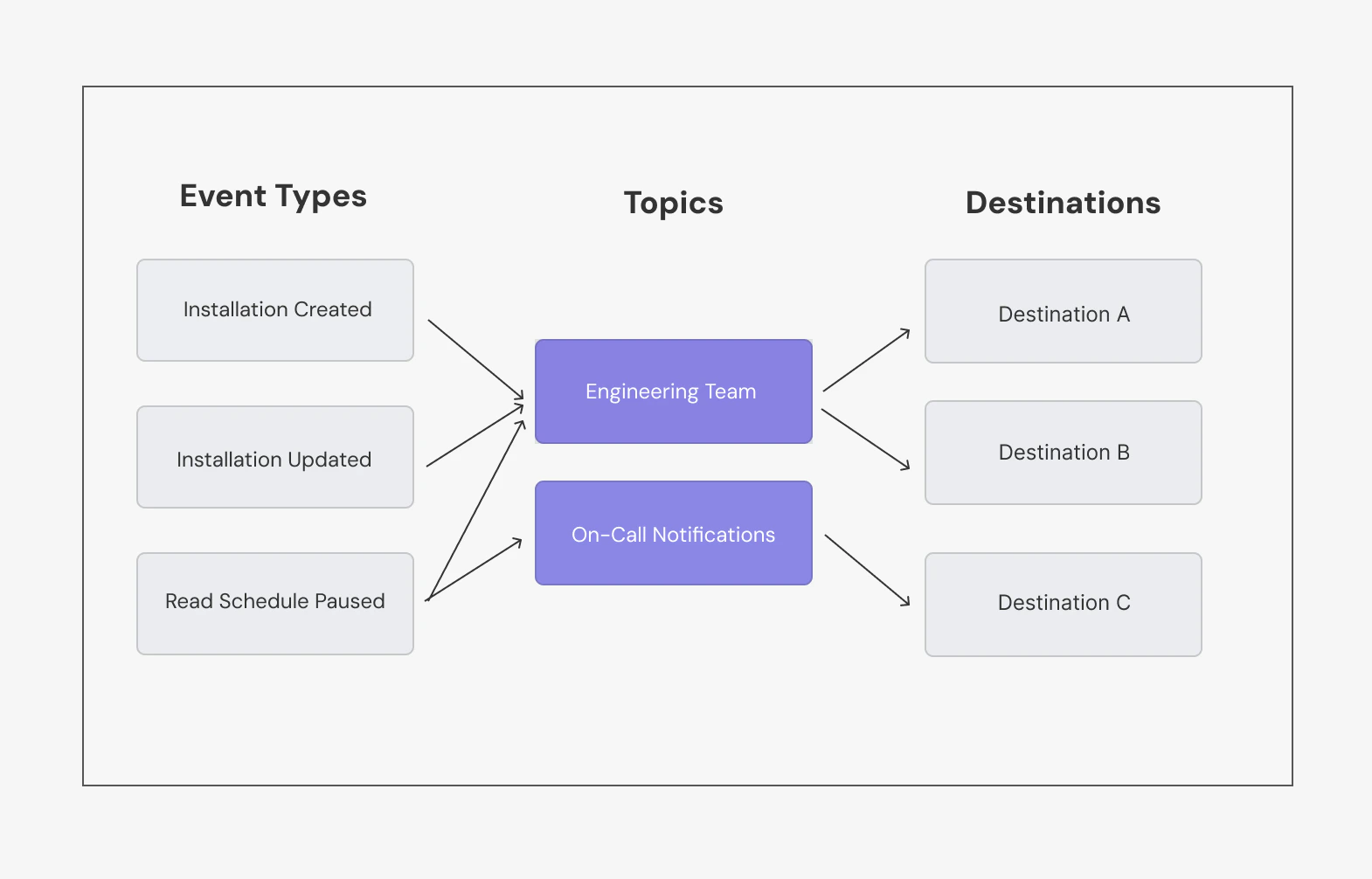
Notifications Diagram
Available events
Ampersand supports the following notification event types:installation.created: Fires when a customer installs your integration to their SaaS instanceinstallation.updated: Fires when a customer modifies their integration configuration (e.g., changes field mappings)installation.deleted: Fires when a customer uninstalls your integration from their SaaS instanceread.backfill.done: Fires when historical data sync completes so you know backfill data is ready to processread.schedule.paused: Fires when a scheduled data sync is paused, often due to authentication issues or other errorsconnection.created: Fires when a new OAuth connection is established with a SaaS providerconnection.error: Fires when there’s an error with an OAuth connection, such as authentication failures or token refresh issuesdestination.webhook.disabled: Fires when a webhook destination endpoint is disabled
Setting up notifications
There are two ways to set up notifications:- Using the Dashboard: Visual interface for quick setup
- Using the API: Programmatic setup for automation and integration
Set up via Dashboard
-
Create destinations
- Go to Destinations
- Click New Destination and configure:
- Name: A descriptive name (e.g., “production-alerts”)
- Type: Choose webhook, Kinesis, or log destination
- Configuration: Provide the endpoint URL or stream details
- Click Create Destination
-
Create topics
- Go to Notifications
- Click New Topic
- Configure your topic:
- Name: A descriptive name (e.g., “installation-events”)
- Event types: Select the events this topic should receive
- Destinations: Select which destinations should receive notifications
- Click Create Topic
Set up via API
When using the API, you need to create routes explicitly to connect events to topics and topics to destinations. The dashboard handles this automatically when you create a topic. See the API Reference for complete endpoint documentation.1. Create a destination
1. Create a destination
2. Create a topic
2. Create a topic
3. Create notification-event-topic routes
3. Create notification-event-topic routes
Notification-Event-Topic Routes connect specific event types to topics. This determines which events are sent to each topic.
4. Create topic-destination routes
4. Create topic-destination routes
Topic-Destination Routes connect topics to destinations. This determines which destinations receive notifications for each topic.