> ## Documentation Index
> Fetch the complete documentation index at: https://ampersand-24eb5c1a-cobalt0s-google-contacts.mintlify.site/llms.txt
> Use this file to discover all available pages before exploring further.
# RingCentral
## What's Supported
### Supported Actions
This connector supports:
* [Proxy Actions](/proxy-actions), using the base URL `https://platform.ringcentral.com`.
### Example integration
To define an integration for RingCentral, create a manifest file that looks like this:
```YAML theme={null}
# amp.yaml
specVersion: 1.0.0
integrations:
- name: ring-central-integration
displayName: My RingCentral Integration
provider: ringCentral
proxy:
enabled: true
```
## Before You Get Started
To connect RingCentral with Ampersand, you will need [a RingCentral Developer Account](https://developers.ringcentral.com/sign-up).
Once your account is created, you'll need to create an app in RingCentral, configure the Ampersand redirect URI within the app, and obtain the following credentials from your app:
* Client ID
* Client Secret
* Scopes
You will then use these credentials to connect your application to Ampersand.
### Create a RingCentral Account
Here's how you can sign up for a RingCentral account:
* Go to the [RingCentral Sign Up page](https://developers.ringcentral.com/sign-up).
* Choose your preferred environment and sign up using your preferred method and verify your email.
### Creating a RingCentral App
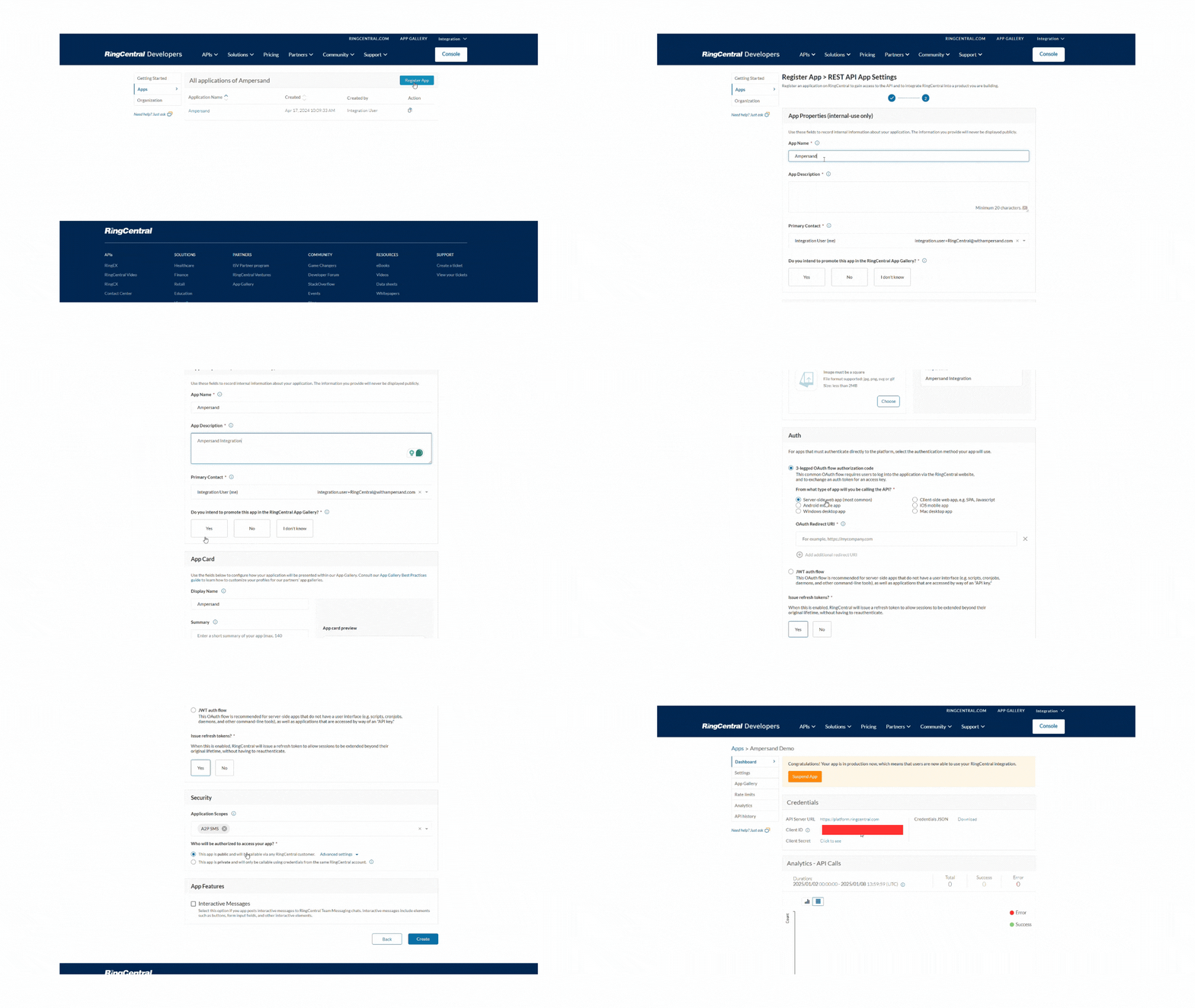
Follow the steps below to create a RingCentral app and add the Ampersand redirect URL.
1. Log in to your [RingCentral Developer](https://developers.ringcentral.com/login) account.
2. Click **Console** and then select **Register App** in the **Apps** section.
3. Select the **App Type**: Rest API App and click **Next** Button.
4. Enter the **App Name**, **App Description**.
5. Choose **3-legged OAuth flow authorization code** in the Auth section.
6. Enter callback URI as **[https://api.withampersand.com/callbacks/v1/oauth](https://api.withampersand.com/callbacks/v1/oauth)** in the **OAuth Redirect URI** field.
7. For the **Issue refresh tokens?** Select **Yes** to enable refresh token issuance or **No** to disable it, allowing users to maintain their session without re-authentication.
8. For the **Application Scopes** in the **Security** section, select the required scopes.
9. For the question **Who will be authorized to access your app?**, choose 'Public' to make the app accessible to all RingCentral customers or 'Private' to restrict access to the same RingCentral account.
10. Click **Create**.
 ## Add Your RingCentral App Info to Ampersand
1. Log in to your [Ampersand Dashboard](https://dashboard.withampersand.com).
2. Select the project where you want to create a RingCentral integration.
## Add Your RingCentral App Info to Ampersand
1. Log in to your [Ampersand Dashboard](https://dashboard.withampersand.com).
2. Select the project where you want to create a RingCentral integration.
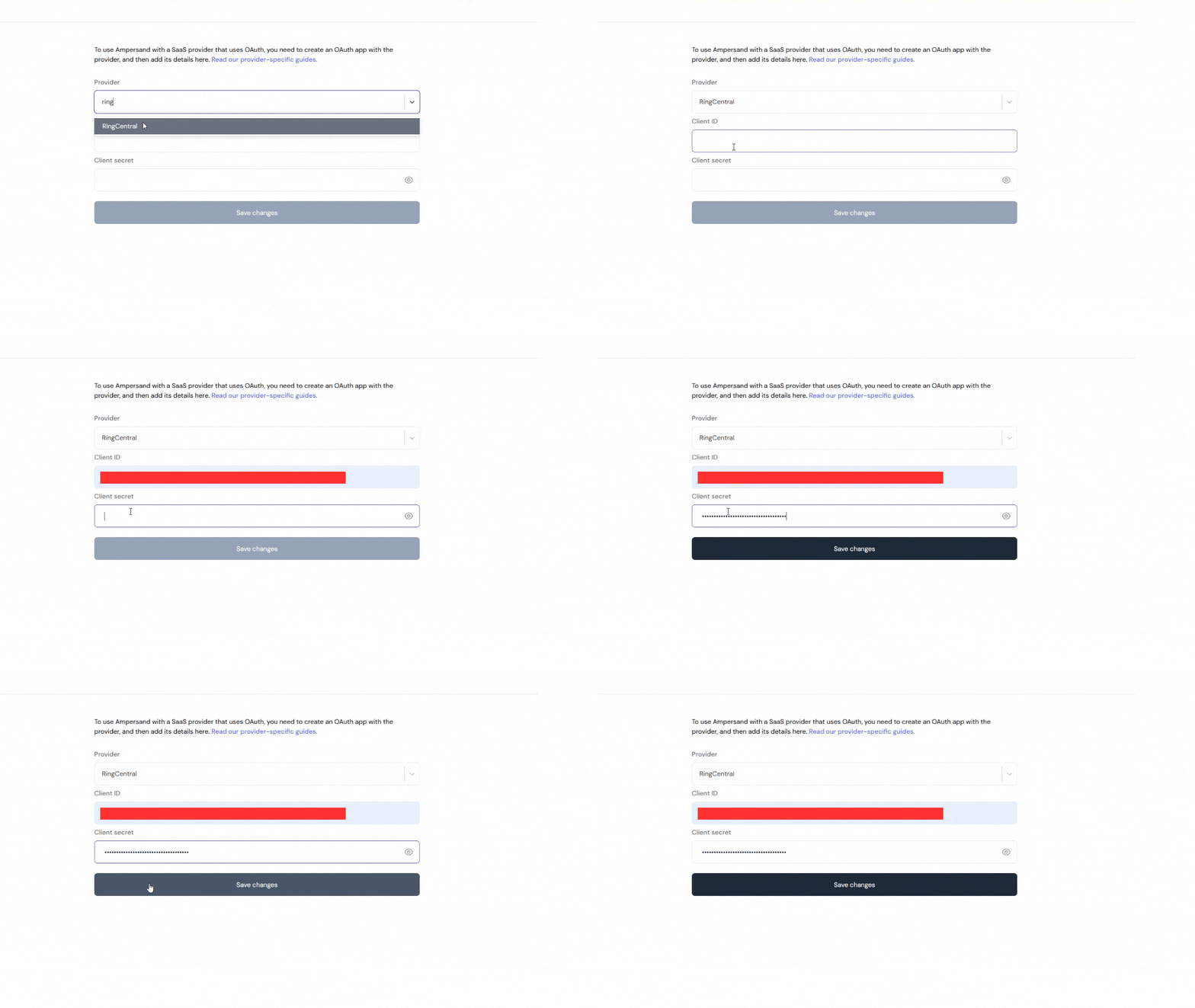
 3. Select **Provider Apps**.
4. Select RingCentral from the **Provider** list.
5. Enter the previously obtained Client ID in the **Client ID** field and the Client Secret in the **Client Secret** field.
3. Select **Provider Apps**.
4. Select RingCentral from the **Provider** list.
5. Enter the previously obtained Client ID in the **Client ID** field and the Client Secret in the **Client Secret** field.
 ## Using the connector
To start integrating with RingCentral:
* Create a manifest file like the example above.
* Deploy it using the [amp CLI](/cli/overview).
* Embed the [InstallIntegration](/embeddable-ui-components#install-integration) UI component. The UI component will prompt the customer for an API key.
* Start making [Proxy Calls](/proxy-actions), and Ampersand will automatically attach the API key supplied by the customer. Please note that this connector's base URL is `https://platform.ringcentral.com`.
## Using the connector
To start integrating with RingCentral:
* Create a manifest file like the example above.
* Deploy it using the [amp CLI](/cli/overview).
* Embed the [InstallIntegration](/embeddable-ui-components#install-integration) UI component. The UI component will prompt the customer for an API key.
* Start making [Proxy Calls](/proxy-actions), and Ampersand will automatically attach the API key supplied by the customer. Please note that this connector's base URL is `https://platform.ringcentral.com`.